
编辑器帮助
字体字号设置
- 字体字号设置:Confluence编辑器不能直接选择字体字号,而是通过一种类似于HTML标记语言的方式来设置字体字号。具体方法是在编辑器页面依次选择insert more content→markup,在弹出的窗口中选择"Markdown"。示例语法为<font size=xxx face="yyy">内容</font>,其中xxx数字,表示字号。yyy表示字体。几种常见字体示例如下:
楷体:<font face="STKaiti">楷体</font>
宋体:<font face="STSong">宋体</font>
黑体:<font face="SimHei">黑体</font>
仿宋:<font face="STFangSong">仿宋</font>
中宋:<font face="STZhongSong">中宋</font>
微软雅黑:<font face="Microsoft YaHei">微软雅黑</font>
幼圆:<font face="YouYuan">幼圆</font>
Times New Roman: <font face="Times New Roman">Times New Roman</font>
Arial: <font face="Arial">Arial</font>
Courier New: <font face="Courier New">Courier New</font>
上标和下标
- 上标:把上标内容置于两个
^符号中间即可,注意第一个^前面要有一个空格。这样输出后上标与前面的字符之间会有一个空格,利用退格键可以把这个空格删除掉; - 下标:与上标类似,只不过把
^换成~即可。
特殊符号与表情包
在编辑页面顶部 "insert more content"(如下图所示)的下拉菜单里选择 "Symbol" 和 "Emoticon" 分别可以插入特殊符号和表情包,详细参见官方手册相关内容Symbols, Emoticons and Special Characters.

Latex数学公式--(已失效)
通过MathJax插件实现了对Latex数学公式的支持,使用方法是在编辑器页面选择insert more content–Other macros,在弹出的窗口中搜索"math"即可找到MathJax,该插件支持行内公式与行间公式,输入公式时无需输入$$。行间公式自动在页面居中。编辑好公式并发布后,在页面上浏览时,右单击公式可以选择缩放公式字号和其它一些有趣的操作。
Confluence升级至9.2版本之后,该插件由于兼容性问题无法使用。
Markdown语法支持
Confluence编辑器支持有限的Markdown语法,在编辑器页面依次选择insert more content→markup,在弹出的窗口中选择"Markdown"即可。经测试,似乎除了不支持Latex公式外,其余语法都支持,包括标题级数,粗体,斜体,有序/无序列表,表格,链接等
站内引用
在要被引用的地方创建一个Anchor:insert more content – Other macros,搜索Anchor,输入Anchor的名字即可,注意大小写;
在要引用Anchor的地方,插入链接,在链接窗口选择Advanced,在Link窗口按情况输入相关信息即可:
| 同一页面 | 相同空间不同页面 | 不同空间的页面 |
|---|---|---|
| #Anchor name | page name#anchor name | spacekey:page name#anchor name |
常用快捷键
单击页面右上方的 可以查看快捷键
- 快速编辑
当浏览长页面时,敲一下键盘上的e,页面上方菜单栏会出现,单击Edit即可从所浏览内容的位置进入编辑状态。
空间设置
字体设置
依次点击侧边栏的space tools--Look and feel--style sheet,点击Edit,可以为空间中所有页面设置字体,示例如下:
Space style sheet
.wiki-content,
.wiki-content p,
.wiki-content table,
.wiki-content tr,
.wiki-content td,
.wiki-content th,
.wiki-content ol,
.wiki-content ul,
.wiki-content li {
 font-family: Times, "Times New Roman", serif;
 font-size: 14px;
}
添加浮动目录
点击页面左侧边栏底部的"Space tools → Look and Feel → Stylesheet",在Space Stylesheet编辑窗口中填入如下内容后保存。在页面上插入宏 "Table of Contents",(如果页面宽度足够)会自动在页面右侧生成浮动目录,方便跳转查看页面内容。
添加浮动目录
.toc-macro {
position: fixed;
top: 170px; /* Adjust this value to set the distance from the top of the page */
right: 20px; /* Adjust this value to set the distance from the right edge */
width: 250px; /* Adjust the width as needed */
max-height: 80vh; /* Limit the height to 80% of the viewport height */
overflow-y: auto; /* Enable vertical scrolling for long ToCs */
background-color: #f9f9f9;
border: 1px solid #ddd;
border-radius: 4px;
padding: 10px;
box-shadow: 0 2px 5px rgba(0, 0, 0, 0.1);
z-index: 10; /* Ensure it appears above other content */
}

.toc-macro ul {
list-style-type: none;
padding-left: 10px;
}

.toc-macro li {
margin-bottom: 5px;
}

.toc-macro a {
text-decoration: none;
color: #3572b0;
}

.toc-macro a:hover {
text-decoration: underline;
}

/* Adjust main content to prevent overlap with floating ToC */
#main-content {
margin-right: 280px; /* Adjust based on ToC width + some extra space */
}

/* Media query for smaller screens */
@media (max-width: 1200px) {
.toc-macro {
position: static;
width: 100%;
max-height: none;
margin-bottom: 20px;
}

#main-content {
margin-right: 0;
}
页面排序
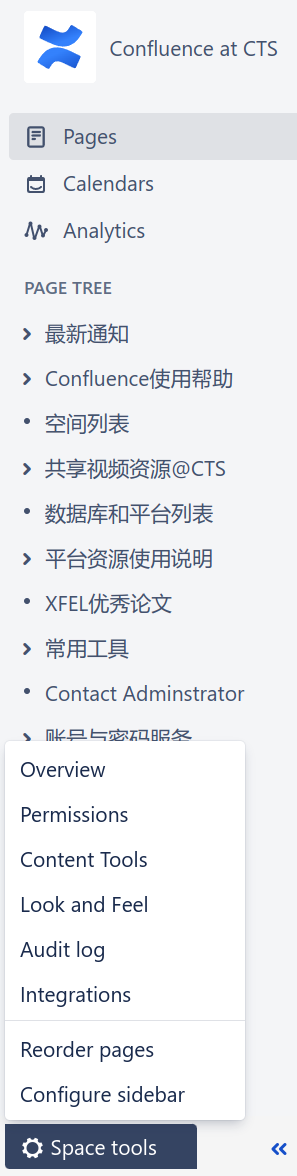
空间中的页面默认是按创建时间排序,Confluence支持自主调整页面的顺序:侧边栏下方Space tools → Reorder pages,然后通过鼠标拖拽的方式对页面进行排序。
插件使用
Confluence上有很多功能强大的插件,但是绝大部分是收费的。本站点上安装了三个有用的免费插件:
- Easy Heading:用于在每个页面右上角生成浮动目录,使用方法见本页面或参见Support for easy heading macro.
- Source Editor:用于编辑页面的源代码。点击编辑页面右上方的"< >"即可进入源代码编辑模式;
- Vertical Align:用于单元格的垂直居中。在编辑页面会自动出现。
如果有安装新插件的需求,请联系技术支持
第三方交互
复制页面地址
非编辑状态下,Confluence任何一个页面的地址的格式均为 "https://confluence.cts.shanghaitch.edu.cn/space/<space_id>/pages/<page_id>/<page_title>",如果page_title中有中文,复制页面网址到其它地方时,中文一般会转换成Unicode编码(形如%A0%8B%3A等),实际上page_id足以确定页面地址,所以复制时只需要到page_id即可,不需要复制后面的页面标题。
个人配置
个人账号登录后,点击右上角的图像,可以进入个人中心,包括管理个人空间等。特别是,在“setting”里,可以设置个人站点主页,登录后会自动跳转到该页面(详见Confluence推荐设置)。
联系管理员
Overview
Content Tools